As a seasoned home automation enthusiast with years of hands-on experience deploying openHAB across various setups, I can attest to its power as a mature, open-source platform. Protocol-agnostic and hardware-flexible, openHAB unifies control over virtually any smart device, eliminating the clutter of manufacturer-specific apps. If you're tired of juggling multiple apps for lights and sensors, openHAB on a Raspberry Pi delivers a flexible, cost-free smart home hub.
This comprehensive guide draws from my real-world installations to walk you through setup on a Raspberry Pi 2 (adaptable to others). We've helped thousands streamline their homes—download the free PDF version to share and follow along.
openHAB isn't plug-and-play, but with methodical steps, it's rewarding. We'll cover installation, demo setup, Philips Hue integration, remote access via IFTTT, a DIY Bluetooth occupancy sensor, and mobile app configuration.
A Raspberry Pi (ideally model 2 or later) with Ethernet (Wi-Fi setup not covered here—see our Raspberry Pi wireless guide). openHAB runs on older models like B/B+, but expect slower Z-Wave performance. Upgrade later if needed.
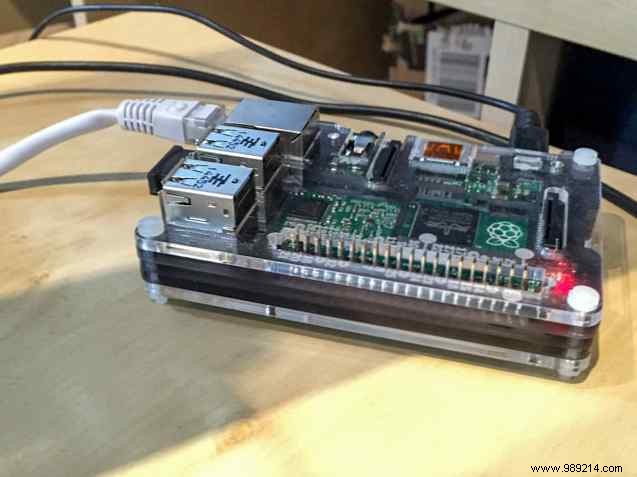
This guide targets openHAB 1.7.1 (1.8 incoming; v2 alpha incompatible). Follow slowly for success.
No prebuilt image—use command line on headless Raspbian (full, not lite, for Java). Boot, SSH in, run:
sudo raspi-configExpand filesystem, set memory split to 16 (advanced menu), reboot, then update:
sudo apt-get update && sudo apt-get upgradeAdd repo and install:
wget -qO - 'https://bintray.com/user/downloadSubjectPublicKey?username=openhab' | sudo apt-key add -
echo 'deb https://dl.bintray.com/openhab/apt-repo stable main' | sudo tee /etc/apt/sources.list.d/openhab.list
sudo apt-get update
sudo apt-get install openhab-runtime
sudo update-rc.d openhab defaults
Fix ownership:
sudo chown -hR openhab:openhab /etc/openhab
sudo chown -hR openhab:openhab /usr/share/openhab
Install Samba for easy config access:
sudo apt-get install samba samba-common-bin
sudo nano /etc/samba/smb.conf
Enable WINS: wins support = yes. Add shares:
[openHABHome]
comment = openHAB Home
path = /usr/share/openhab
browsable = yes
writable = yes
guest only = no
create mask = 0777
directory mask = 0777
public = no

[openHABConfig]
comment = openHAB Config
path = /etc/openhab
browsable = yes
writable = yes
guest only = no
create mask = 0777
directory mask = 0777
public = no
Set password: sudo smbpasswd -a openhab (use 'openhab'). Restart:
sudo update-rc.d smbd enable
sudo update-rc.d nmbd enable
sudo service smbd restart
Mount shares (e.g., on Mac: smb://raspberrypi.local). Access https://raspberrypi.local:8080/ (expect error sans sitemap). Monitor logs: tail -f /var/log/openhab/openhab.log.
Download demo from openhab.org. Copy addons to /usr/share/openhab, settings to /etc/openhab (overwrite). Watch logs for activity. View: https://raspberrypi.local:8080/openhab.app?sitemap=demo.
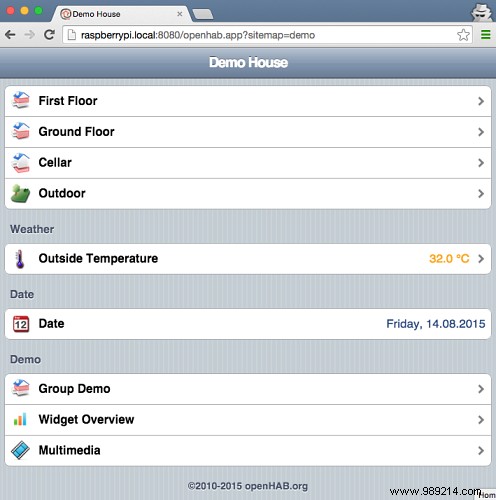
Sitemaps define UIs (see demo.sitemap). Items define devices (demo.items).
Items: Devices/sensors (e.g., lights, feeds). Bind to protocols.
Sitemaps: UI layouts by room/device.
Rules: Automations (timers, conditions).
Scripts: Advanced logic.
Persistence: Data logging (advanced).
Transform: Value mappings.
Create blank home.items/home.sitemap:
sitemap home label="My Home"Edit logback.xml (line ~40): <logger name="org.openhab" level="DEBUG"/>. Reboot.
Install binding: sudo apt-get install openhab-addon-binding-hue && sudo chown -hR openhab:openhab /usr/share/openhab.
Copy openhab-default.cfg to openhab.cfg. Uncomment/edit Hue section:
########################### Hue Binding ######################################
hue:ip=192.168.1.216
hue:secret=makeuseofdotcom
hue:refresh=10000
Press Hue bridge button. Define items (home.items):
Group Bedroom Group Office Group Kai Group Living_Room Group Cinema Group Secret
Group Lights

/* Lights */
Color Bedroom_Hue "Bedroom Hue" <hue> (Bedroom, Lights) { hue="1" }
Color Office_Hue "Office Hue" <hue> (Office, Lights) { hue="2" }
Color Secret_Hue "Secret Hue" <hue> (Secret, Lights) { hue="3" }
Color Kai_Hue "Kai Hue" <hue> (Kai, Lights) { hue="4" }
Sitemap (home.sitemap):
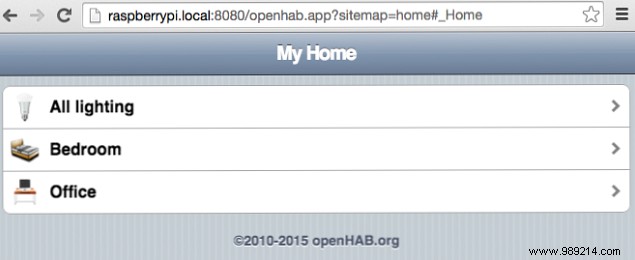
sitemap home label="My Home"
Frame item= Lights label="All Lights" icon="light"
Frame item=Bedroom label="Bedroom" icon="bedroom"
Frame item=Office label="Office" icon="desk"
View: https://raspberrypi.local:8080/?sitemap=home. Backup/move demo items to avoid conflicts.
Install: sudo apt-get install openhab-addon-io-myopenhab && sudo chown -hR openhab:openhab /usr/share/openhab.
Get UUID/secret from /usr/share/openhab/webapps/static. Ensure Java 8: sudo update-alternatives --config java (select oracle-jdk8).
Register at my.openhab.org. In openhab.cfg: persistence:default=myopenhab. Create persistence/myopenhab.persist:
Strategies default = everyChange
Items * : strategy = everyChange
Connect IFTTT OpenHAB channel via my.openhab.
Add item: Switch JamesInOffice "James in Office" (Office).
Install: sudo apt-get install bluez python-bluez python-pip && sudo pip install requests hcitool. Scan: download/run inquiry.py for MAC.
Create ~/detect.py (edit MAC/item):
Autostart: /etc/rc.local before exit 0: python /home/pi/detect.py &.
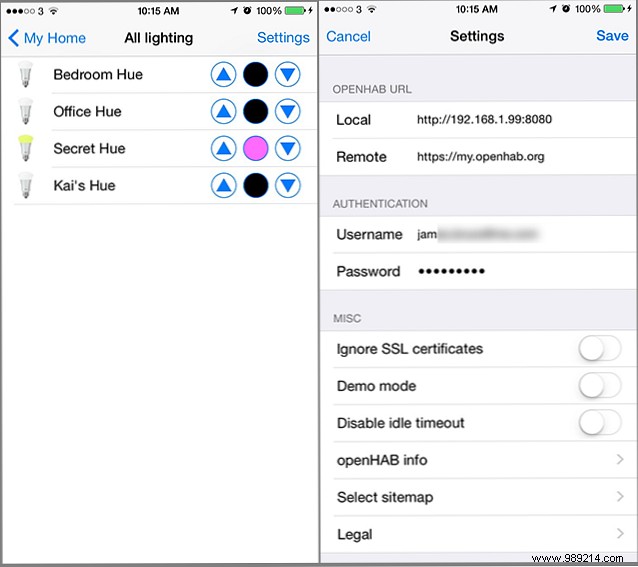
Use native apps. Local: https://[IP]:8080. Remote: https://my.openhab.org (auth with account).
Explore REST/HTTP/IFTTT for custom IoT. For help: openHAB forums. Stay tuned for advanced guides on Z-Wave and more.
